Showing posts with label Microsoft. Show all posts
Showing posts with label Microsoft. Show all posts
Tuesday, January 05, 2010

Friday, December 04, 2009
Sunday, November 22, 2009
Using Outlook - Leave e-mail messages on your e-mail server
From Microsoft's Website
When you retrieve e-mail messages from a POP3 e-mail account, the messages are deleted from the e-mail server by default after they are downloaded to your computer. For many people, this works great.
However, if you want to check your e-mail from multiple computers, you must configure Outlook to not delete the messages on your e-mail server. This scenario is most common for people who want to check their home Internet service provider (ISP) e-mail account from work and download the messages for permanent storage on their home computer.
When you leave messages on your e-mail server, you can choose from several options to delete your messages. To make your choice, you need to consider several factors about your e-mail usage, such as how long you want the messages to be accessible from multiple computers and the storage limits imposed by your e-mail server administrator. If you exceed your storage limit, you might be unable to receive new messages or might be charged additional fees. Typically, it is best to have one computer set to the default setting that doesn't leave e-mail messages on the e-mail server. When you use the computer to retrieve your e-mail messages, they are downloaded and deleted from the e-mail server. If you choose not to do this, Outlook allows you to select a time duration for leaving e-mail messages on the server.
- On the Tools menu, click E-mail Accounts.
- Click View or change existing e-mail accounts, and then click Next.
- Select your ISP account, and then click Change.
- Click More Settings.
- Click the Advanced tab, and under Delivery, select the Leave a copy of messages on the server check box.
- Select one of the following options:
- Remove from server after x days E-mail messages are downloaded to your computer but remain on the e-mail server for the number of days that you specify. This is the most common setting for people who want to read their messages at work but also download them for permanent storage on their home computer. We recommend that you choose the smallest number of days that suits your needs. The longer you leave messages on your e-mail server, the greater the risk of exceeding your mailbox size quota.
- Remove from server when deleted from 'Deleted Items' E-mail messages are downloaded to your computer but also remain on the e-mail server indefinitely until you delete the e-mail message in Outlook and empty the Deleted Items folder. Just deleting the message doesn't remove the message from the e-mail server.
If you do not select either check box, messages are left on the server indefinitely. You can eventually exceed your mailbox quota, unless you connect to the e-mail server from another computer that has Outlook configured to remove messages from the e-mail server.
- Click OK, and then click Finish.

Wednesday, November 04, 2009
Windows 7 > All Programs = BLANK / Missing / Empty
To Fix:
Open C:\Users\ [...] \App Data\Roaming\Microsoft\Windows\Start Menu
right click on the programs folder > properties.
then i checked the 'hidden' check box to make the folder (and all subfolders) hidden.
then click apply.
After doing that everything shows up when I go to start menu -> all programs like it should.
Open C:\Users\ [...] \App Data\Roaming\Microsoft\Windows\Start Menu
right click on the programs folder > properties.
then i checked the 'hidden' check box to make the folder (and all subfolders) hidden.
then click apply.
After doing that everything shows up when I go to start menu -> all programs like it should.
Wednesday, October 14, 2009
MSN Messenger Bot
LOL
I got added by a bot called
elizabethzurama@hotmail.com
conversation:
hi
me: hi
how are you?
me: how are you?
my name is paris blah blah blah....
me: block user
I got added by a bot called
elizabethzurama@hotmail.com
conversation:
hi
me: hi
how are you?
me: how are you?
my name is paris blah blah blah....
me: block user
Sunday, October 11, 2009
Windows 7 - Show Deskop button
I was always wondering how to "show desktop" in Windows 7.
I only found it by accident!
It's in the bottom right hand corner.
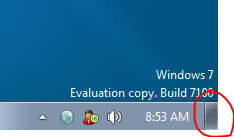
I only found it by accident!
It's in the bottom right hand corner.

Saturday, October 03, 2009
IIS asking for windows password
IIS was being stupid.
asking for (windows) authentication password
even though the site was setup to be anonymous access.
so I went into IIS manager
right clicked on the site > properties > directory security > Auth and access control
disabled anonymous access
clicked ok
then went back into it and re-enabled anonymous access
that seemed to fix it
:)
Subscribe to:
Posts (Atom)

 Posts
Posts

