Wednesday, October 14, 2009

How to remove joomla 1.5 copyright info

First:
in cpanel > filemanager

Go to the root folder Of Joomla > languages > en-GB/ en-GB.mod_footer.ini
FOOTER=Footer
FOOTER_LINE1=Copyright © %date% %sitename%. All Rights Reserved.
FOOTER_LINE2=Joomla! is Free Software released under the GNU/GPL License.
MOD_FOOTER=mod_footer
THIS MODULE SHOWS THE JOOMLA! COPYRIGHT INFORMATION=This Module shows the Joomla! Copyright information


Second:
Go to yourtemplate/index.php > bottom of page
Reblog this post [with Zemanta]

Tuesday, October 13, 2009

Joomla - Changing the main title "welcome to the frontpage"

This will guide you on howto change the 'Welcome to the Frontpage' title on your Frontpage.

Go to your Joomla! 1.5 Administration site and login. In your administration site go to:
  • Menus - Main Menu
  • Click on 'Home' link to edit this link.
  • Click on Parameters System and change or delete the Page title.
  • Click SAVE.
alt
Reblog this post [with Zemanta]

Joomla - SEF not working (404 - Component not found)

Joomla - Search Engine Friendly URLs in the Global Configuration of Joomla 1.5.2 and tested and verified to be true for 1.5.3 as well.

" ... edit configuration.php as var $live_site = 'http://www.mysite.com' "

Note that default configuration.php is var $live_site = ''

Wave hello to the future

WOW google wave is looking awesome.  I never really took notice until recently.  but wow!
http://wave.google.com

Sunday, October 11, 2009

Windows 7 - Show Deskop button

I was always wondering how to "show desktop" in Windows 7.
I only found it by accident!
It's in the bottom right hand corner.


Saturday, October 03, 2009

IIS asking for windows password

IIS was being stupid.
asking for (windows) authentication password
even though the site was setup to be anonymous access.

so I went into IIS manager
right clicked on the site > properties > directory security > Auth and access control
disabled anonymous access
clicked ok

then went back into it and re-enabled anonymous access

that seemed to fix it
:)

LDAP Browser

This tool comes in handy when you need to test LDAP connections - and its free!
Softerra LDAP Administrator & Browser: Directory Management Tool Download
LDAP Browser 2.6

Type
Free
Version
2.6
OS
Windows NT 4.0/2000/XP/2003
Upload date
12/07/2003


Reblog this post [with Zemanta]

Wednesday, September 30, 2009

Add Google Analytics to your Blog

How to add google Analytics to your blog?
  1. Login to Google Analytics at http://google.com/analytics/.
  2. Add a new Website Profile for domain.
  3. Analytics provides you with a code block - so highlight it and copy it (ctrl+c)

Step 2: Now Add the Google Analytics Code into your Blogger Blog Template

  1. Login to http://www.blogger.com/. This will take you to your Dashboard.
  2. Select the blog and click on Layout > Edit HTML.
  3. Scroll down to the end of the template. It will look something like:


PASTE YOUR ANALYTICS CODE HERE

  1. Paste your Google Analytics code directly before the tag.
Congrats! You have now added the Google Analytics Code to Your Blogger.com Blog.
Horray
:)

Sunday, September 27, 2009

Fiddler - The web debugging proxy tool

What is Fiddler?

Fiddler is a Web Debugging Proxy which logs all HTTP(S) traffic between your computer and the Internet. Fiddler allows you to inspect all HTTP(S) traffic, set breakpoints, and "fiddle" with incoming or outgoing data. Fiddler includes a powerful event-based scripting subsystem, and can be extended using any .NET language.
Fiddler is freeware and can debug traffic from virtually any application, including Internet Explorer, Mozilla Firefox, Opera, and thousands more.

Its a pretty cool tool and will come in handy. I forgot the name of this tool a few days ago and really needed to install it on another computer.
Click here to vidit the homepage


Reblog this post [with Zemanta]

Thursday, September 24, 2009

How to block IP address ranges in uTorrent – using ipfilter.dat « Decoding the Web

How to block IP address ranges in uTorrent – using ipfilter.dat


In case that you experience lots of hash fails in your uTorrent client, or just simply want to filter out suspicious IP addresses, you should use an IP blocklist.

Here is how:

1. Download an appropriate IP blocklist. Just get the one called "nipfilter.dat.gz" - The file will be saved in .gz format, therefore you will have to unzip it. The result is a file called “ipfilter.dat”, that is the IP blocklist.

2. Copy/paste the ipfilter.dat file into your %appdata%\utorrent folder.
click start > run > and enter:-
%appdata%\utorrent
This folder looks something like “C:\Documents and Settings\Application Data\uTorrent”.

3. Start uTorrent, go into Options > Preferences > Advanced, set the
ipfilter.enable option to True

and hit Apply/OK.
Now load up uTorrent.
If you have successfully executed the above steps, then on the Logger tab of uTorrent, you should see something like
“Loaded ipfilter.dat (xxxx entries)
If you see there “0 entries”, then something went wrong.

You can reload the list without restarting uTorrent, by simply setting the ipfilder.enable option to False/OK and then True/OK.

Wednesday, August 19, 2009

Install VMware Tools in SLES10 / SLES / Linux on ESXi via online repo

I found the easiest way to install vmware tools was to do the following, as the option to install vmware tools in VSphere Client only gave a tar file.

*You need internet access on the Guest for this to work

From the online docs
http://pubs.vmware.com/guestnotes/wwhelp/wwhimpl/js/html/wwhelp.htm
  1. Goto: Installing VMware Tools
  2. scroll down "
    To download OSPs and to find important information and instructions, go to http://www.vmware.com/download/packages.html"
  3. To download the Operating System Specific Packages, see the package repository at
    http://packages.vmware.com/tools
  4. From here goto the correct directory(s) - e.g. /tools/esx/4.0/sles10/x86_64
  5. In YAST > Software > Installation Source : add in the URL - e.g. packages.vmware.com/tools/esx/4.0/sles10/x86_64
  6. Click ok
  7. Now in YAsT > Software > Software Management : search for vmware
  8. tick to install vmware tools and click "Check" button - the will automatically add on the necessary packages.
  9. Accept
  10. after the install finished - reboot the guest
  11. Done!- you should now have vmware-tools installed


Tuesday, July 28, 2009

Telnet in Windoiws Vista / Windows 7

  • open control panel
  • Then go into programs
  • Then in programs and features there should be a part that says ‘turn windows features on or off ‘
  • Click ‘turn windows features on or off ‘ then on the list that appears simply choose: Telnet Client


Friday, May 01, 2009

Dreamweaver SFTP to SLES 10

Was unable to connect to my sles box using sftp in Dreamweaver 8.
However, I was able to sftp using mucommander.

To fix this i found this solution.

change the following in /etc/ssh/sshd_config
PasswordAuthentication = no
PasswordAuthentication = yes


Convert VMware to MS Virtual PC iamge

Announcements : VMDK to VHD Converter Available
VMDK to VHD Converter Available


Monday, April 27, 2009

Automatically connect to console in Remote Desktop (OSX)

macosxhints.com - Automatically connect to console in Remote Desktop
When using Remote Desktop Client for Mac to connect to a Windows Server 2003 machine, you can hold down the Command key while pressing Connect to connect to the server's console session.

If you want to save your connection settings to a file, however, there is no option in the GUI to automatically use the console session. To do this, you will need to open up the saved connection file in your favorite text editor, and add the following line:

connect to console:i:1


Wednesday, April 22, 2009

Running IE on your Mac

Found this interesting page regarding running various versions of IE on your Mac. - in a virtual of course...
Its also interesting in regards to using Microsoft Virtual PC for users that do web development to be able to test different versions of IE on a windows platform. 

Running IE6, IE7 and IE8 on your Mac — The Mozmonkey Blog


Wednesday, April 15, 2009

Installing VMware Tools on SLES10 Linux on VMWare Fusion

In vmware fusion i installed SLES10 sp2 however when attempting to install the vmware tools there was no RPM install.

On vmware.com there is a link to download an ISO that contains the Linux VMware tools - you can download it from here or direct link to iso

Linux Version | 2008/09/12 | 183 MB
Download .iso file
md5sum: 10ae80986e1532a188f8b93ad878945e

once downloaded, load up fusion and run SLES.
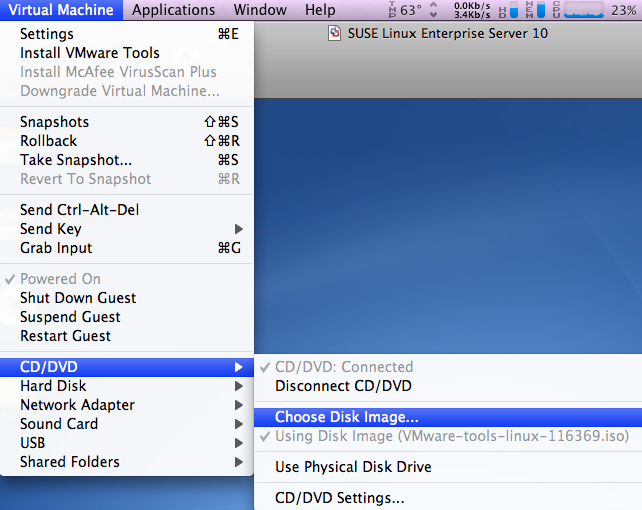
Click on Virtual Machine > CD/DVD > choose disk image
and select the iso file
also, make sure that CD/DVD is Connected


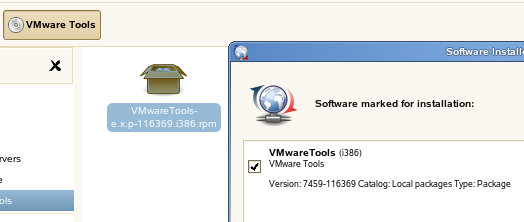
You should now have the following icon on your SLES desktop


double click on VMware Tools
and run the RPM installer


Configure VMware Tools:
Load up a terminal windows in SLES

vmware-config-tools.pl

Respond to the questions the installer displays on the screen. Press Enter to accept the default value.


Restart the VM machine

Thats IT!
vmware tools should now be installed and working!


from vmware.com